Services Management
How to add, edit, and delete clinic services in ClinGEO. Running AI scans.
For writing new clinic articles, start with the Content Hub user guide. It covers setup, blog checks, briefs, review, and WordPress publishing. Content audits assess existing pages; Content Hub is the writing and publishing workflow.
Services Management
The "Services Management" section (/home/services-management) lists all of your clinic's services for which ClinGEO tracks AI visibility.
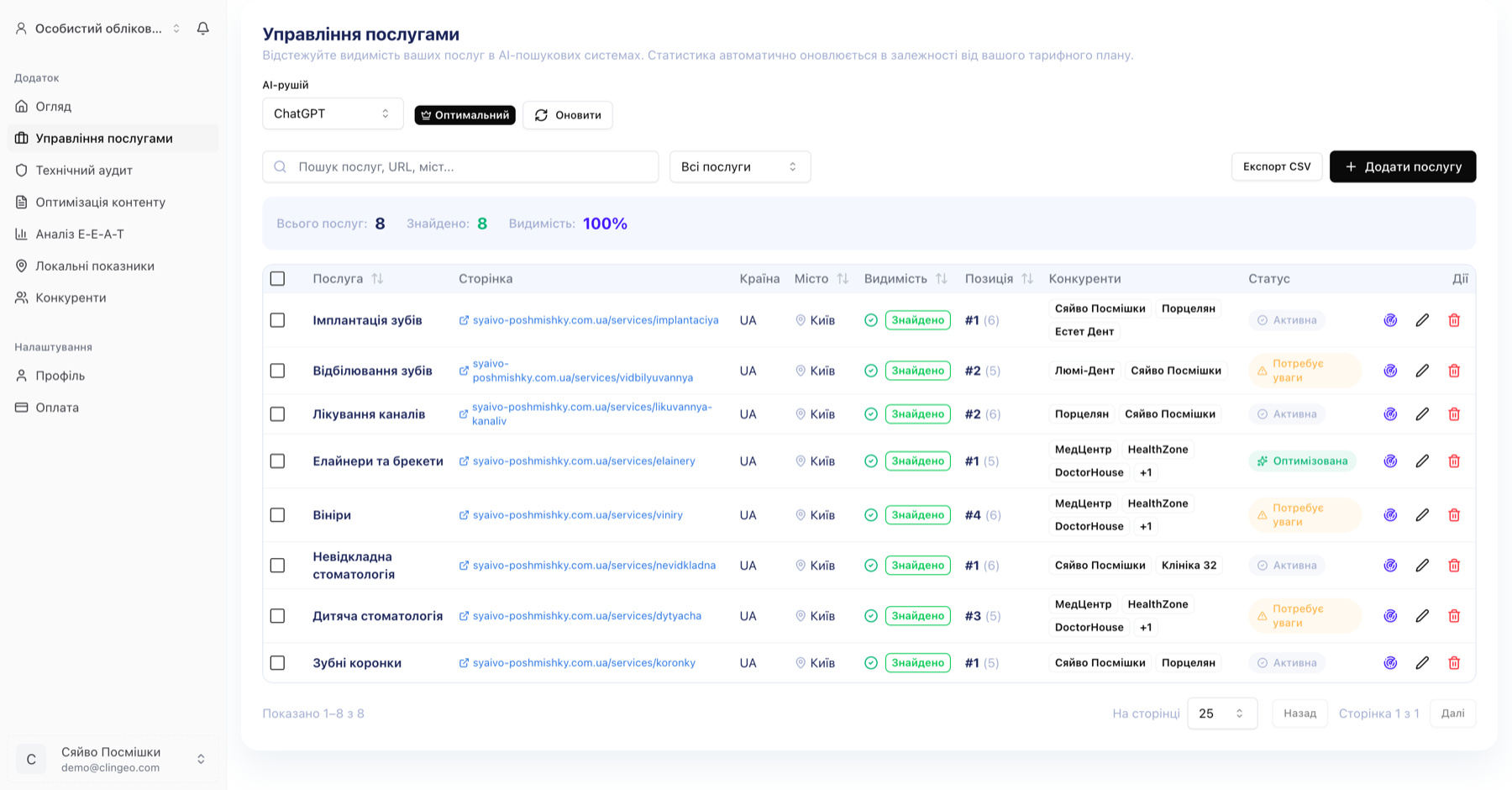
What is a "service" in ClinGEO?
A service is a medical procedure or treatment specialty that patients use when searching for a clinic in AI systems.
Examples:
- Dental Implants
- Teeth Whitening
- Cardiac Ultrasound
- Cataract Surgery
- Brain MRI
Tip: Add the services that bring the most patients or where you face strong competition. Each AI scan for a service uses one scan credit.
Viewing the service list
The page displays a table of all services. For each service:
| Field | Description |
|---|---|
| Name | Service name |
| AIV | Current AIV Score / AI Visibility Score (0–100) |
| Visible | Whether the clinic appears in AI responses (✓ / ✗) |
| Position | Last recorded position in AI responses |
| Last Scan | Date of the last AI scan |
| Actions | Edit and delete buttons |
Adding a new service
Step 1. Open the form
On the Services Management page, click "Add service" (usually in the top-right corner or at the bottom of the list).
Step 2. Fill in the details
In the form, enter:
- Service name (required) — e.g., "Cavity Treatment"
- Service page URL (optional) — a direct link to this service's page on your website. If provided, the content audit analyzes this specific page.
Important: The service name directly affects AI scan quality. Use the name patients actually type when searching. Avoid medical abbreviations — write the way patients speak: "tooth extraction", "dental prosthetics" rather than clinical terms.
Step 3. Save
Click "Save". The service appears in the list and its first AI scan starts automatically right after creation.
Note: If the AI service is temporarily unavailable or a limit is reached, the result may not appear immediately. In that case, you can run the scan manually later.
Running an AI scan
An AI scan is a query to ChatGPT or another AI system: "Which clinics provide [service name] in [city]?" ClinGEO analyzes the response and determines whether your clinic is among the recommended ones.
Manual scan
- Find the service in the table
- Click the "Scan" button (or the 🔍 icon in the service row)
- Wait 15–30 seconds for the AI system to process the query
- Results appear in the row: visibility (yes/no) and position
Note: Scan limits depend on your plan. The current number of available scans can be viewed in the Billing section.
Automatic scanning
ClinGEO starts the first scan immediately after you add a service.
If automatic updates are enabled (Optimal plan and above), the system then re-scans all services every 7 days without any action on your part.
Editing a service
- Find the service in the table
- Click the ✏️ (edit) icon in the service row
- Change the name or URL
- Click "Save"
Note: Changing a service name affects how queries are formed for new scans. Previous scan results are preserved.
Deleting a service
- Find the service in the table
- Click the 🗑️ (delete) icon in the service row
- Confirm deletion in the dialog
Warning: Deleting a service removes all its AI history (scans, AIV metrics). This action is irreversible.
Service limits
The number of services depends on your plan:
| Plan | Maximum services |
|---|---|
| Trial | 10 |
| Starter | 50 |
| Optimal | 150 |
| Leader | Unlimited |
If the limit is reached, the "Add service" button will be inactive. To add more — upgrade your plan in the Billing section.