Profile & Settings
Managing your personal profile, password, and project settings in ClinGEO.
Profile & Settings
The "Profile" section (/home/settings) contains settings for your personal account and projects.
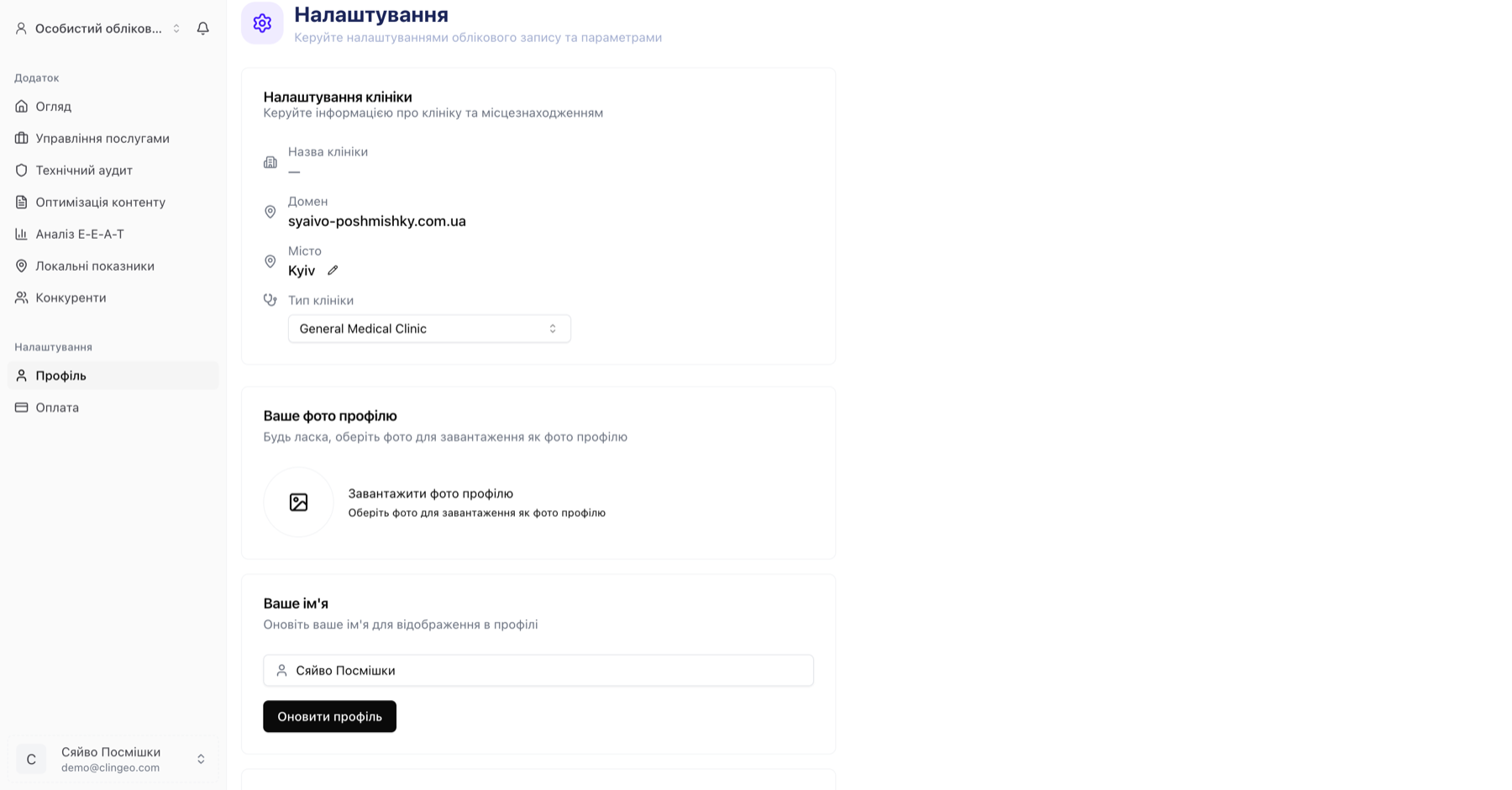
Personal profile
Accessing your profile
Click the account icon (avatar or initials) in the top-right corner of the interface, then select "Profile" or "Account Settings".
What you can change
| Field | Action |
|---|---|
| Name | Display name in the interface |
| Address for login and notifications | |
| Password | Change your account password |
| Avatar | Upload a profile photo |
Changing your password
- Go to Profile → Security (or find the "Password" section)
- Enter your current password
- Enter your new password (minimum 8 characters)
- Confirm the new password
- Click "Save"
If you've forgotten your current password, use the "Forgot password?" feature on the sign-in page (
/sign-in).
Changing your email
Changing your email is a sensitive operation. After saving the new email:
- A confirmation email is sent to the new address
- A change notification is sent to the old address
- The email is changed after you confirm via the link in the email
Until you confirm the new email — sign-in uses the old email address.
Project settings
Project (clinic) settings are available via:
- The ⚙️ settings icon next to the project name in the left panel
- Or via Profile → Projects → [Project Name] → Edit
What you can change
| Field | Description |
|---|---|
| Clinic name | Display name in the dashboard |
| Website domain | Main domain for audits |
| City | City for AI scans and local analysis |
| Clinic type | Affects E-E-A-T and content audit algorithms |
Warning: Changing the domain does not delete previous audits, but all new audits will be run for the new domain.
Deleting your account
If you need to delete your account, contact support via the "Contact us" button or the support email.
Account deletion is irreversible and leads to:
- Deletion of all projects and audit data
- Cancellation of active subscriptions
- Impossibility of data recovery
Signing out
- Click your avatar or initials in the top-right corner
- Select "Sign Out" from the menu
You will be redirected to the sign-in page. Session data is cleared.